Thursday, December 29, 2016

Important Hacks and Tricks for Microsoft Excel

Most of the businesses use Microsoft Excel to create charts and represent information. There a few hacks that one can follow to easily speed up the work when working on this application program.
  • You can select all the cells in the spreadsheet all at once, you can click on the circled square in the workbook. You can also use CTRL+A to select all the cells at once.
  • Open the source workbook and target workbook to copy and paste any information. For this open the source workbook and right click on the sheet and select 'move to copy.' From the selected list, select the sheet where you want to copy from the list and click ok.
  • To add multiple rows and columns at once, select the rows where you want new rows or columns to appear. Then right click on the row where you want the new row or column to appear and select 'insert.'You can see new rows inserted. You can follow the same method to insert columns, by selecting the columns instead of rows.
  • On a spreadsheet that has data that needs to be sorted, you can select the rows and click on data, and select filter. The selected rows will show drop down menus where you can click or unclick the selection to filter the data.
  • If you have a formula that you want to appear on the other rows. Simply input the formula once in the B2 cell. Next drag it across a range of cells so that the formula appears.
  • If you want to number the data, then just add the number in one cell and drag the cell down to as many numbers as you need. Additionally, you can click on the small box that appears next to the cell and select how you want to fill the numbers.
  • If you want to see the information of any cell, highlight it, and the information appears at the bottom of the worksheet.


Ways to Keep your Computer Hardware Clean

You don't need a professional help to clean the peripherals of the computer. You can follow simple procedures to clean the computer. Dust inside the computer can slow down the performance. You must periodically clean the parts of the computer so you can make it work at optimum levels. This way, you can avoid repairs by maintaining the computer parts yourself and keeping it clean.
Before cleaning the computer, shut it down, remove the flea power if you are using a desktop PC, and unplug the peripherals to start cleaning the computer. Never clean the system while it is still on.
  • To clean the keyboard, unplug it and gently turn it upside down to remove any dirt and the clean the keys of the keyboard.
  • To remove the dirt stuck inside the mouse, turn it upside down and clean the internal parts of the mouse with a soft fleece cloth.
  • Many computer stores sell cleaning liquids and a soft cloth with which you can clean the monitor of the computer. Avoid using water for cleaning any parts as much as possible.
  • Always use an anti-static cloth to clean any part of the computer so it attracts any dust or lint onto the cloth and cleans the parts thoroughly.
  • The system fan is likely to catch dust. You can open the computer and clean it with a soft cloth or take professional help for cleaning the internal parts of the system or the laptop. This kind of cleaning keeps the system from getting corrupted and keeps its speed working at optimum level.
  • You can use foam or cotton swabs around the computer and use alcohol to clean the case of the computer.
  • You can open the CD or DVD roms and clean the internal case with the cloth. This is the secondary storage device that requires regular cleaning.
  • Likewise, you can clean the headphones, printers, and all external devices with the same procedure.
  • Never ever vacuum clean any of the internal device as they have sensitive LEDs or buses and other parts that might get corrupted.

Friday, December 23, 2016

Important Keyboard Shortcuts for Windows


Keyboard shortcuts makes navigating through applications and processes easier. Most of the experienced users use these shortcuts to get around working on the Windows operating system with ease. New users can easily learn these keyboard shortcuts and work with speed on their Windows operating system.


Combination Keys for System Programs


  • Press ALT+TAB to switch between programs that are open. 
  • ALT+F4 is used to quit any open application. 
  • SHIFT+DELETE is used to permanently delete a file. Doing so the files gets automatically deleted from the trash can and you do not have to perform a separate delete for this file. 
  • Windows Key+L locks the screen of the computer/ locks the computer.

Combination keys for navigating through applications
  • CTRL+C is used to copy the contents of the text and the image in any file, or copy anything on the Windows operating system before pasting it in the destination location.
  • CTRL+Y does the redo of any undone or modified content in the file.
  • CTRL+Z performs the 'undo' task for any operation performed on the file or the Windows operating system.
  • CTRL+V performs the operation of pasting any file on the system.
  • CTRL+B is used to bold the content any open document that has text.
  • CTRL+I is used to Italicize the text content in a file.
  • CTRL+U is used to underline any text content in a file.
  • F1 opens the Windows help menu.
  • SHIFT+Right click opens the shortcut menu.
  • ALT+double click opens the properties of any file.
Keyboard only commands
  • ALT+TAB is used to switch between open programs.
  • ALT+ DOWN arrow opens the windows task manager.
  • ALT+SPACE key opens the system menu to resize, move, minimize, or maximize any window.


Now make Browsing easier with these Simple Tricks and Hacks!


top-browser-logos.jpg
Source https://www.e-conomic.com/file-pic/top-browser-logos/top-browser-logos.jpg

Social media plugins, login issues, saving important file formats, speeding up the browser, and many more tricks can be performed to make the use of the internet and other tools perform well and make them secure. Internet is one of the most unsecure platforms. A few tricks and hacks can be performed to make the browsing secure and use the internet properly.

Social Media Plugins
  • Buffer is a service and a button that can be added to your blogs when you get a free account with Buffer. It lets you add tweets to the Buffer page by shortening the link. 
  • Lightshot is a screenshot tool for a browser that can let you upload the screenshot and save it in the hosting account. Bloggers who use screenshots regularly can find this tool handy. 
  • AdBlock is a good tool to install in the browser as it blocks all the ads that open automatically as dialog boxes and hide the content of the website. This is a useful tool, as some of the ads might contain virus get installed in your computer's system drive. 
  • Rockmelt is a browser that comes with inbuilt social media tools and plugins. 
  • Facebook Chat is a tool that lets you chat with your Facebook friends even when you are not logged into your Facebook login page.
Commands for Webpages
  • CTRL+T opens a new blank page in a browser that has tabbed browsing. 
  • CTRL+ENTER key completes the URL of the website that is half typed. You can jus type the main domain name and hit this combination keys to complete the web address of that web page. 
  • Word+ 'Define' can be used to find the definition of any word in Google. That is, type the word in the Google spacebar and type 'define' next to it and hit enter to get the definition of any word. You don't have to use a dictionary to find the definition of any word. 
  • CTRL+SHIFT+T is the key combination for the Chrome browser to reopen a browser that has been closed accidentally. 
  • CTRL+ and CTRL- are the key commands to increase or decrease the text size in the browser. 
  • Use the Keyword - Another keyword in the Google browser to find accurate results. For instance, if you type Selena Gomez - Justin Beiber, you will find results only related to Selena Gomez.\
That's it! You have now saved a huge chunk of time. Use it wisely!

Formatting Your Windows system? Here are a few things to take care of!


Formatting the Windows operating system could be the last option when internal processes or applications are not working. There are few important steps to be followed to ensure that the you do not lose data or any other important information on your computer. Backing up all the data is one vital step and a standard procedure that everybody follows. Apart from that, there are a few things that users can do so they can ensure the system is formatted properly without any errors.

File and Setting Transfer Wizard
 
You can use this option from the start button and follow the dialog box to transfer your files and select the drive to which you want to transfer the files. Make sure that this is not the Windows drive you select, as this is the drive that you will be formatting. If you want to do a complete format, you can transfer these files to an external storage drive your system is connected to. It could be a pen drive, a DVD, external hard disk, or any other storage device that has the same file system as that of the Windows operating system.


Source: https://www.oxhow.com/wp-content/uploads/format-without-losing-data-fast-wizard-copying-files.gif

 Repair Installation

If you want to keep files on your system, and only resolve a small system error, then you might not need a complete system format. You can save your files to a different drive and do a repair installation instead of complete installation. When you choose this option, you do not have to reinstall any of the applications, drivers, plug-ins, or add ons that you have been using. The Windows only replaces corrupted, deleted, or system files from the registry and makes all the background processes functional.

 
Source: https://www.oxhow.com/wp-content/uploads/format-without-losing-data-welcome-to-setup.gif

Store Web Passwords in a Spreadsheet

After a clean installation or a repair installation, you will not be able to use stored passwords for documents or websites that you have used previously. For this, store all the passwords in a spreadsheet and complete the installation.


Export Bookmarks, E-mail Addresses, and Address Books

This is one important thing to be done before performing any kind of installation on your computer. You must export all the browser bookmarks so you can import them later into your browser. Also, whenever you download any app, save them to the different folder, so you know to take a backup of these applications and install updates later.


Get a Back Up of Motherboard and Device Drivers


Though, most of the latest version of Windows operating system comes with drivers. You can still look into these drivers separately and install them on the system once you have performed the formatting and re-installation on the computer.


Do not Press Enter the Second Time
 
The system restarts a couple of times during the process of installation. At the beginning of the boot, it gives a message called "Press any key to boot from the CD." Do this only the first time the system starts and ignore this instruction every other time it restarts and follow the dialog box to follow the instructions.

Thursday, December 22, 2016

Tips and Tricks for Microsoft Word!


Microsoft Word is a document application which allows the users to create text documents and insert objects, charts, images, web links, and perform many more functions. There are keyboard shortcuts and tricks in Microsoft Word that help make the user work faster and better.

Keyboard Shortcuts and Commands
  • CTRL+A selects the entire text in the document file. 
  • CTRL+C copies the selected text. 
  • SHIFT+ Arrow keys help select any text in the document. 
  • CTRL+F3 key helps cut any text or image and CTRL+SHIFT+F3 key helps paste that image anywhere in the document. 
  • CTRL+ makes any word subscript and CTRL+SHIFT+ makes superscript.
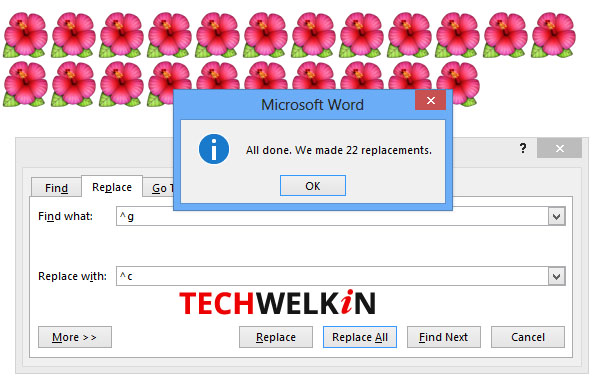
  • To replace a large number of image, perform the following steps:
    1. Select images and press CTRL+C to copy images.
    2. Now delete these images.
    3. Use the CTRL+H command to open a dialog box that replaces images, called the Find and Replace box.
    4. Type ^g in "Find what" and ^c in replace box.
    5. Press the 'replace all' button.
    6. The SHIFT+F5 key takes you to the point in the document where the document was last saved. 
  1. find-select-replace-all-images-techwelkin.jpgSource http://techwelkin.com/wp-content/uploads/2015/10/find-replace-images-ms-word-techwelkin.jpg 
  • When you copy-paste content from the web page onto a word document, you can clear the styling by pressing CTRL+SPACEBAR.
  • For inserting mathematical formula, open the hidden calculator in MSWord using the following commands:
    1. Options ->quick access toolbar -> all commands -> calculator command.
    2. Type the command and copy it and paste it in the document.
 
 
Navigation commands through the document
  • Ctrl + Alt + Page Up  is used to go back to the previous page.
  • Ctrl + Alt + Page Down  is used to go to the next page.
  • Ctrl + Home lets you go to the top of the document.
  • Ctrl + End  lets you go to the end of the document.

Change the Location of the Saved File
When you save a MS Word file, it gets saved in the My Documents folder. You can change the default location for saving any document file to the desired location on the computer by performing the following steps:
  1. File tab -> Options -> Save -> enter the location in the "Default file location"
  2. Click OK.
  3. After doing this every MS Word document gets saved in that default saved location.

Say goodbye to monotonous tasks now.
Following the above tips and using MS Word shall become much easier and fun!


Thursday, December 15, 2016

What to do after you Uninstall a Software?

One of the most common mistakes most of the users commit after uninstalling software is not cleaning its values from the system registry. Not doing so will create problems in re-installation of the same software again as it would coincide with the old values. Sometimes, software does not uninstall and throws errors when the user attempts to uninstall. At this point, there are a few steps to be followed to uninstall the program.


The regular method to uninstall any program is to go to the control panel and click on the program to uninstall and let it run its course. If the program still does not uninstall, you can run system restore, and choose a restore point. Once the restore point is created, install the program, so that if anything goes wrong, you can restore your system to an earlier time.
In Windows 8, you can search for the program that does not uninstall and click on it to uninstall once it shows up in the search menu. Sometimes, the program that is installed does not get listed in the programs menu of the control panel. In such a case, this is one method to uninstall the program.
On the start screen of Windows 8, all the installed programs are listed. You can right click on any of these programs that you want to uninstall and remove them from the system. If neither of these methods works, reinstall the same program to uninstall them. Applications, like the Microsoft Office suite that come with many inbuilt applications that have system dependencies can be tricky to uninstall. Such suites have their own uninstaller and troubleshooting options for uninstallations of any of the applications within the suite.

There are many tools online that can be installed which remove old and unused programs, and corrupted files of installations. They also remove programs with forced uninstallations option. Programs that take up a lot of space and won’t uninstall, a tool called Powershell can be used which uninstalls even the most stubborn applications that won’t uninstall through standard procedures.


The most common types of software that are wearisome to uninstall are the antivirus and security software applications. For such applications, you can use an external app like the App Remover and uninstall them.
You can also remove the entries of the uninstalled program from regedit, the registry editor. For this, open the registry editor, and go to the HKey local machine, Software, Microsoft, Windows, Current Version in the left hand panel. Then click on the folder of the application that you want to uninstall. Right click on that folder and delete it.

You can also go to the SAFE MODE and click on the program files listed in the Windows directory, Drive C, and delete that folder listed in the common files. Now click run msconfig and click the option that says BOOT. INI and uncheck the SAFE MODE and reboot your system.